
Getting Started with Your Interactive PDFUpdated 6 minutes ago
For the best experience, open your Anti-Planner in [Adobe Acrobat Reader / Preview on Mac], set it to two-page view, and keep a saved copy of your work. Not sure which app to use? Find yours in the table below.
How to read this table
- ✅: Everything we tested worked.
- ⚠: The main features work, with a limitation noted on the app’s page.
- 🚫: A key feature is missing. We list a workaround where there is one.
| App | Works? | Notes |
|---|---|---|
| Adobe Acrobat Reader | ✅ | Recommended. Works on Mac and Windows. |
| Preview (Mac) | ✅ | Links, tabs, fields and saving all work |
| Edge/Chrome | ⚠ | Works for the most part some weird quirks |
| Foxit | ✅ | Fields show as boxes; you can turn that off (see Tools) |
| GoodNotes | ⚠ | testing |
| Procreate | ⚠ | testing |
| Notability | ⚠ | testing |
| E-ink readers (TBD, community-tested) | 🚫 | We don't own one of these so it's up to the community to test 😀 |
Select your app’s name for setup steps and screenshots.
Getting Started with Your Interactive PDF
Your Anti-Planner PDF works like the book: you can type in it, tick boxes, and jump between pages. It works best on a computer, in a PDF reader app.
1. Open it in a PDF reader
Download the PDF, then open it in one of these:
- Adobe Acrobat Reader (free, Mac and Windows). This is our top pick.
- Preview (Mac, already installed).
- Foxit Reader (free) [after you retest it].
- Chrome/Edge: shows one page at a time instead of a two-page spread. Use [app] for the spread.
- Radio buttons: [what users should know].
2. Turn on two-page view
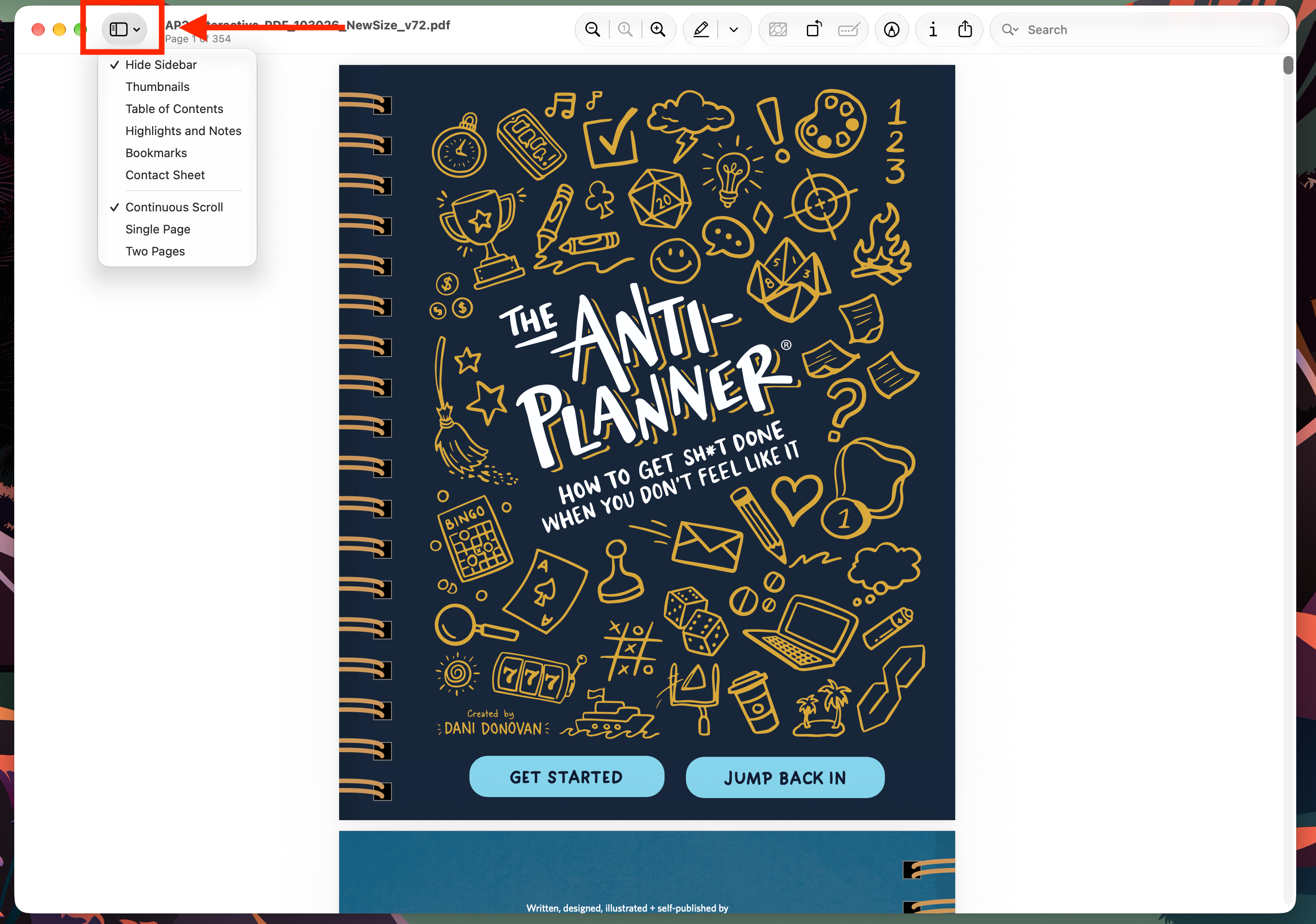
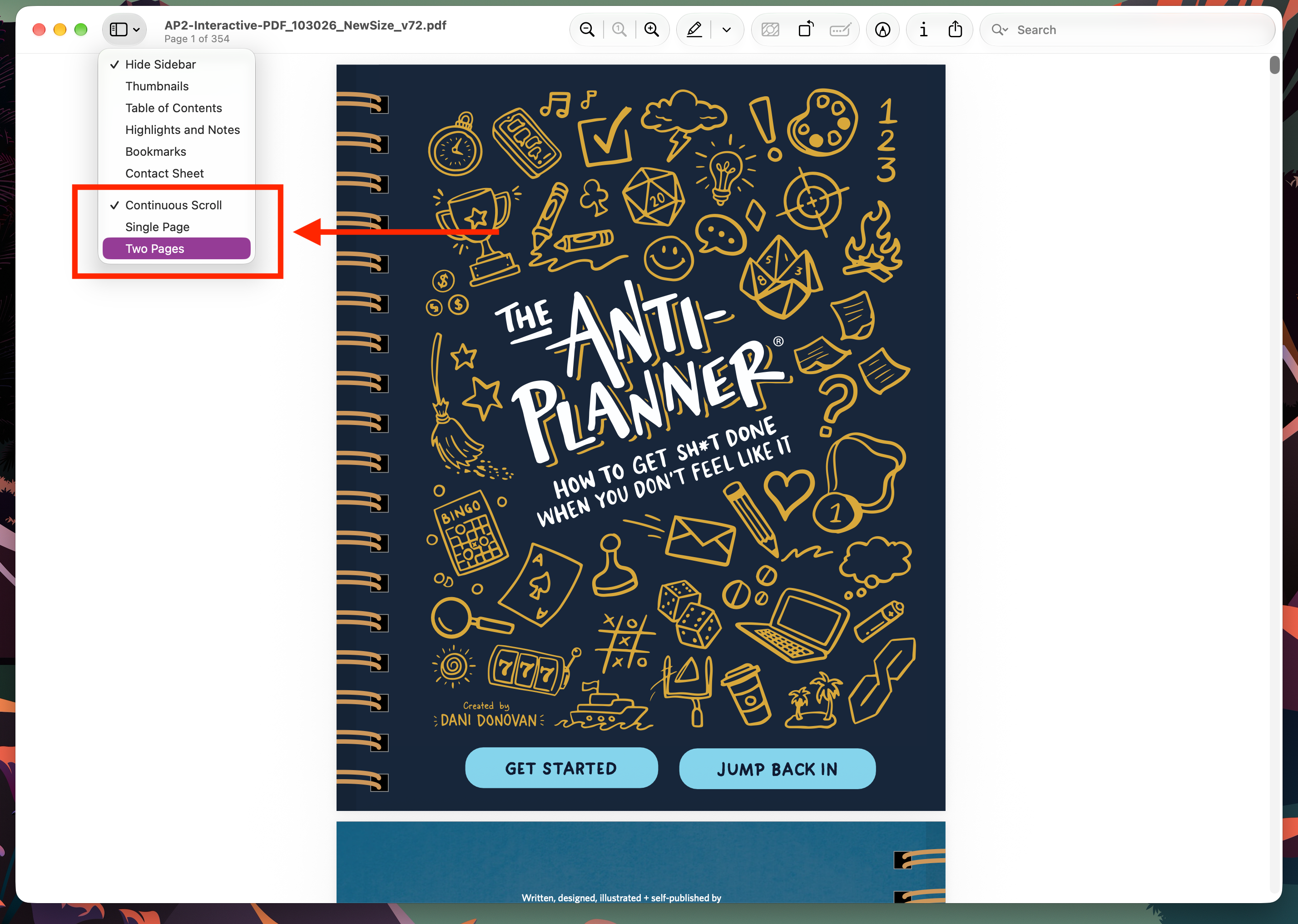
The planner is built as open-book spreads. Set your reader to show two pages side by side, with the cover on its own. Adobe does this for you. In Preview, use the sidebar button at the top left and choose Two Pages.
1. Click the sidebar button in the top left of the window.
2. Choose Two Pages. The cover shows on its own, and the rest show as spreads.
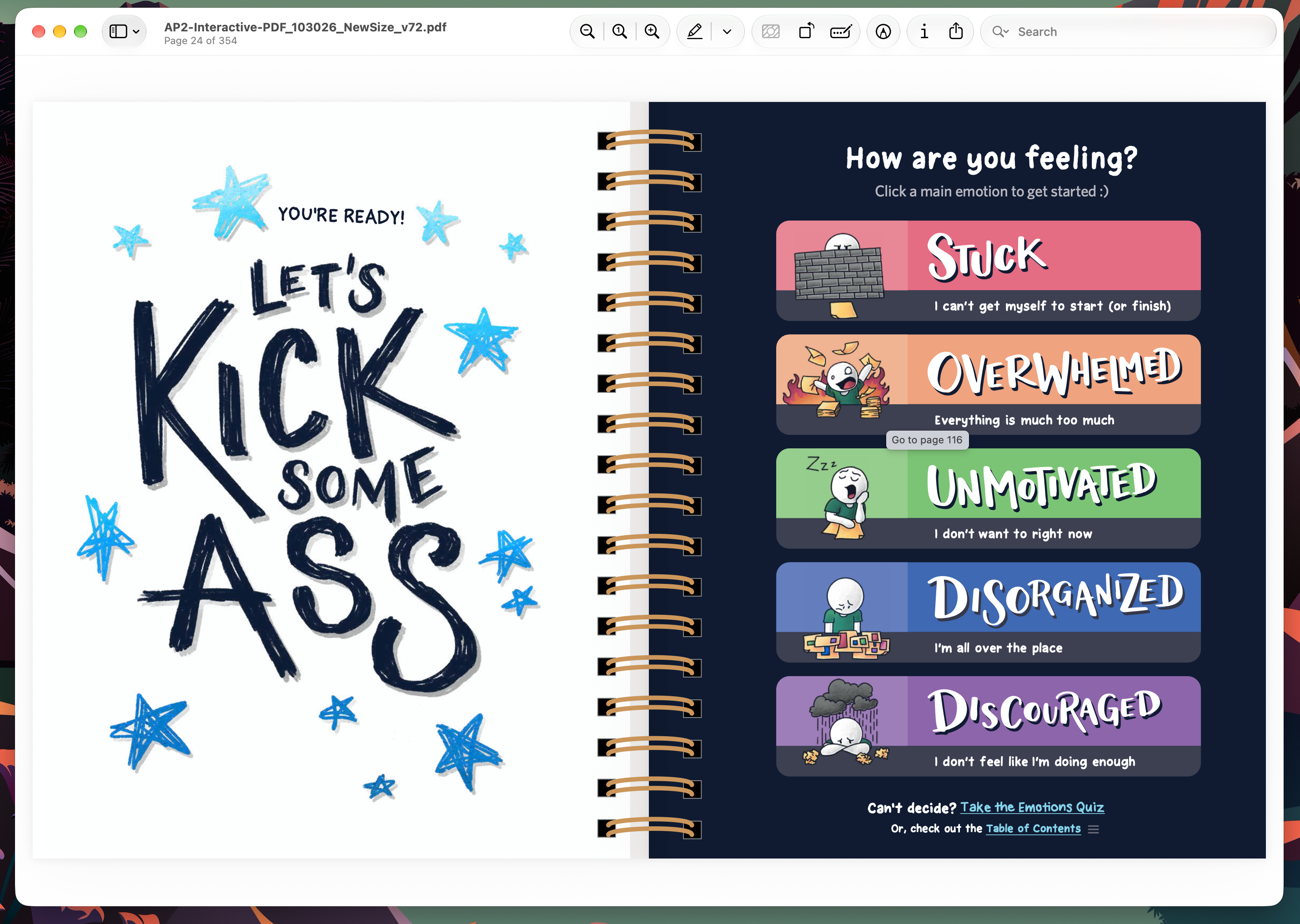
3. Resize the window or zoom so both pages fit.
3. Move around
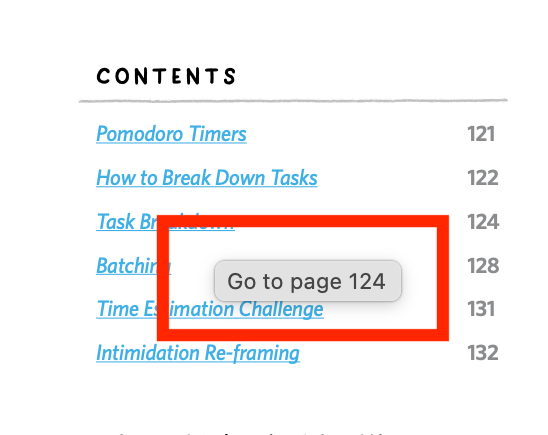
- Click any link, contents entry or side tab to jump to that page.
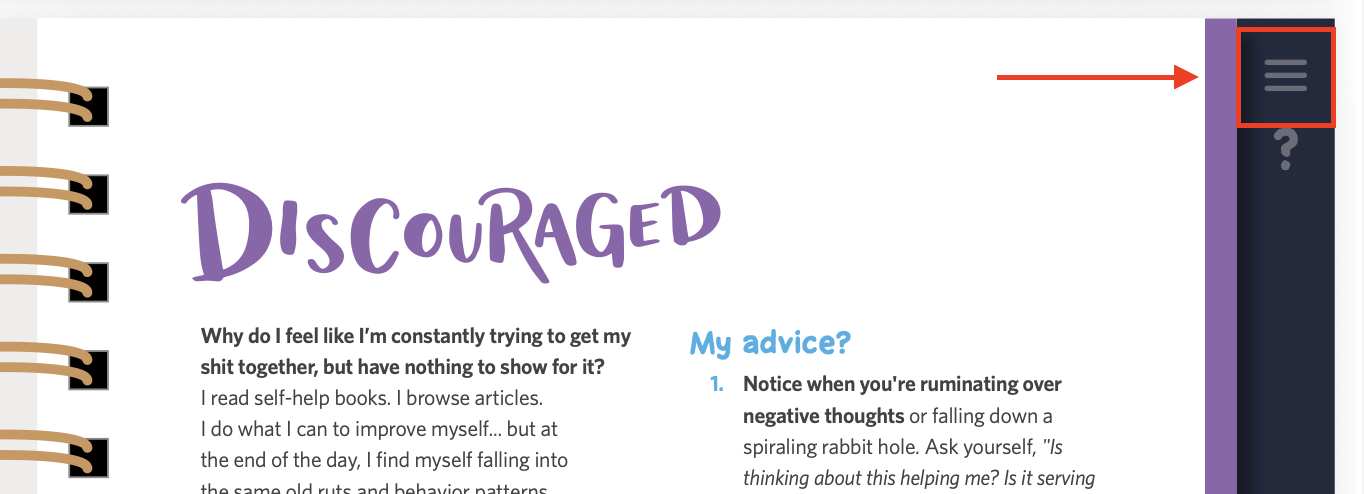
- Click the menu icon in the page margin to return to the contents.
- Click an emotion on the “How are you feeling?” page to go to that section.
4. Fill it in
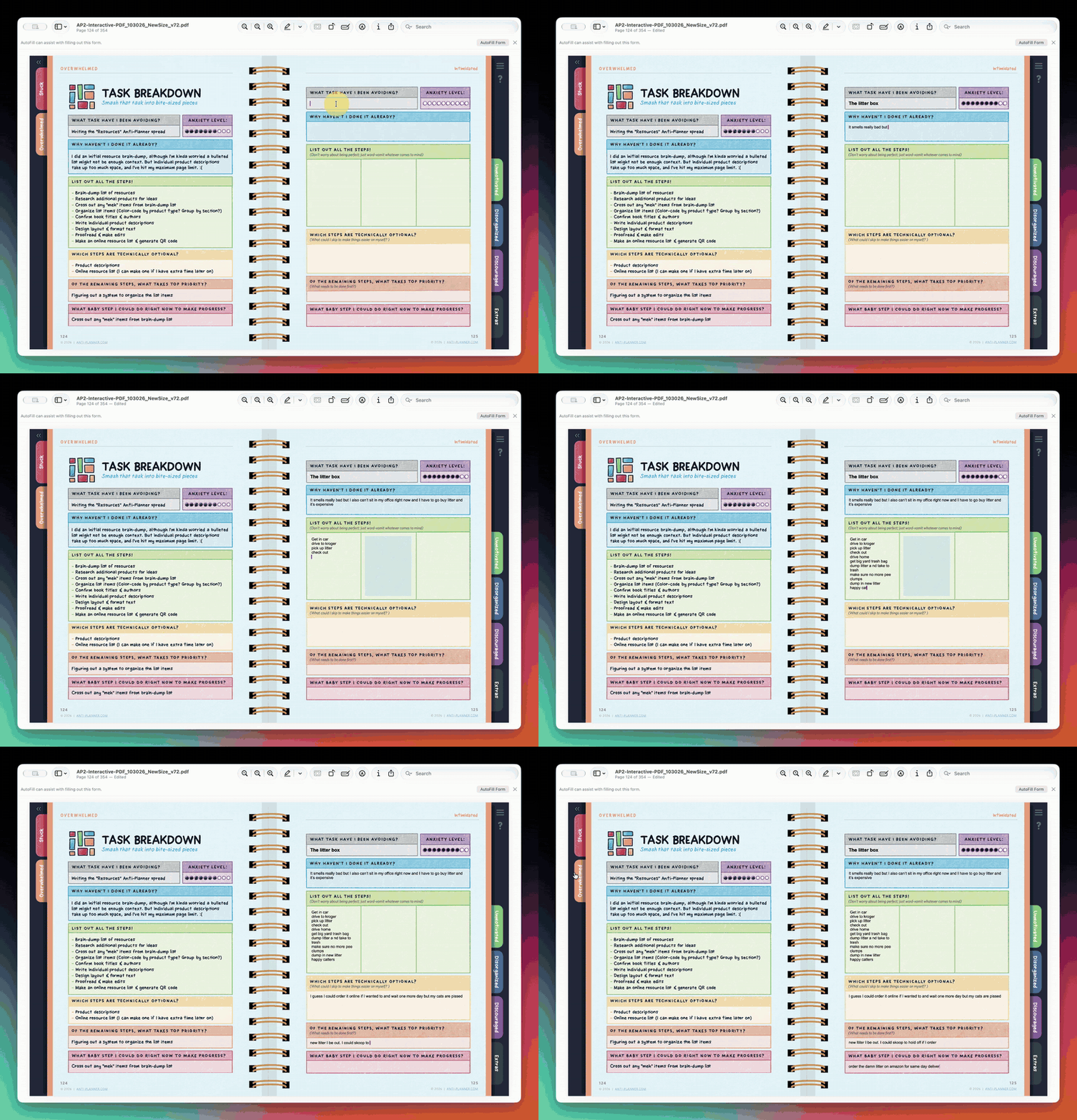
Click a box and type. Click a checkbox to tick it.
5. Save your work
Choose File > Save before you close the file. Your entries will be there when you reopen it. Keep a copy of the original download so you can start fresh any time.
Quirks to know about
- Preview: after you reopen the file, you need to choose Two Pages and fit the page again. The sidebar’s Table of Contents and Bookmarks are empty for now, so use the contents pages inside the planner. You may see an AutoFill bar. Close it with the X.
- Adobe Reader: you may see an AI Assistant bar and a “long document” banner. Close them with the X.
- Apple Books: the on-page buttons don’t work.
- Chrome: shows one page at a time, not a spread. Use Adobe Reader for the full experience.
- GoodNotes, Notability, phones and tablets: These can work in GoodNotes but the interactivity only works when editing is locked.
Still stuck?
Contact us at [email protected] and include your app, device, and a screenshot of what you’re seeing.